 8 Font Ecopixel Functions Guide
 Xeno3 Pixel and RGB Support
 Golden Harvest V4
 Soundboard Board Voice Packs
 Xenopixel v2 Support
 RGBX 12 Font Support
 Golden Harvest Support
 Proffie v2.2 Support Page
 Proffie OS 8.10 Function
 Proffie OS7.13 Function
Sub-Total: $0.00

RGBX Saber Setup Guide
Custom Darkwolf Sabers offers expert help for RGBX sabers. Access startup instructions, tuning tips, and full troubleshooting support today.
Rgbxcore Troubleshooting Guide & Tips
Rgbx Resetting Trouble Shooting
If No Power Up or Sound
Review on Rgbx Eco Kit by Grey Paladin (Permission Granted) Part 1
Grey Paladin shows how to Swap the inner cores during an unboxing video
Rgbx Function Guide by Grey Paladin (Permission Granted) Part 2
Useful guide by Grey Paladin
Credit goes out to him for the approval to use his video please view and subscribe to his channel
Rgbx - Smoothswings Install Functions V.10
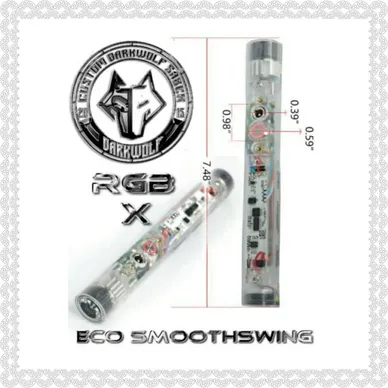
To wake the lightsaber:
- Hold down power button for 1 seconds. A sound will play and the light ring around the power button will illuminate. The saber is now in awake mode.
Awake mode operation:
- Pressing the power button will turn the blade on and activate sounds and effects.
When the blade is lit, the power button operates thusly:
- Tap - blaster deflection
- Hold 0.5 second, button LED flash 1 time, then release = Saber lock-up
- Hold 1 seconds, button LED flash 2 times, then release to cycle blade colors. Once a desired color is reached, tap it to set the color
- Hold 1.5 seconds powers off the blade.
- Holding the power button down for 0.5 seconds, button LED flash 1 time, while the blade is off, but still in wake mode, let go of the button will select sound volume.
- Holding the power button down for 1 seconds, button LED flash 2 time, while the blade is off, but still in wake mode, will select a new light effects(stable, unstable and pulse available).
- Holding the power button down for 1.5 seconds, button LED flash 3 time, while the blade is off but still in wake mode, will select a music.(5sets available).
- Holding the power button down for 2 seconds, button LED flash 4 time, while the blade is off but still in wake mode will select a new sound fonts.(9sets available).
- Holding 10 seconds to make the saber sleep. If the saber sits idle for 10 minutes it will also enter deep sleep again. Sleep mode operation:
- When the saber is in deep sleep there will be no lights or sounds to keep power for long time.
When I Plug the Charger in, Saber Says "Charging" Then "Ready" but Still Wont Power on -(Pf & Rgbx)
This is because the battery isn't being detected by the board.
The video tips at https://www.facebook.com/watch/508313572839417/1042870469519715 will assist greatly with troubleshooting this issue.
1. Unscrew the hilt grip and inspect the battery. Does it make good contact with the battery contacts in the electronics?
2 Remove the battery by tapping the hilt against your hand to "knock" the battery out (do not use implements to pry it out as you risk damaging the battery, electronics or yourself).
3. Gently bend the battery contacts outwards so they are less flat inside the chassis.
4. Reinstall the battery, paying attention to the polarity (+ and - are marked on both the battery and the chassis)
5. Attempt to charge again.
If these steps do not work, please contact us at [email protected]
RGBX ECO Trouble Shooting Help

Issue 1 - Saber has no sound
Saber
Answer = May be in mute mode. Turn off the saber, then hold the button for 0.5 seconds to change sound volume.
Issue 2 - Saber loses either red, blue or green color does not light up at all, or has no swing or clash sounds
Answer = Charge the battery for one hour, as this is likely a low battery issue. Removing and reinstalling the battery may fix it if the issue is not related to charge.
Issue 3 - When charging, saber cues 'charging' then immediately indicated 'ready' The battery is not making contact properly with the plates inside.
Answer = Open the saber and carefully adjust the connectors so that the positive and negative both touch easily bending helps as well. if DIY buyer adding a dab of solder to positive pad helps for perm solution.